

Organization in Premiere Pro
Create order out of chaos—and speed up your edits while you’re at it.

One of the most important parts of editing in Adobe Premiere Pro happens before you hit the timeline: organizing your assets in the Project Panel.
This panel is your command center for everything—video clips, audio, music, graphics, and sequences.
If it’s a mess, your workflow suffers.
But once it’s dialed in, editing becomes much smoother.
Maximize the Project Panel
Before organizing, make your workspace easier to manage:
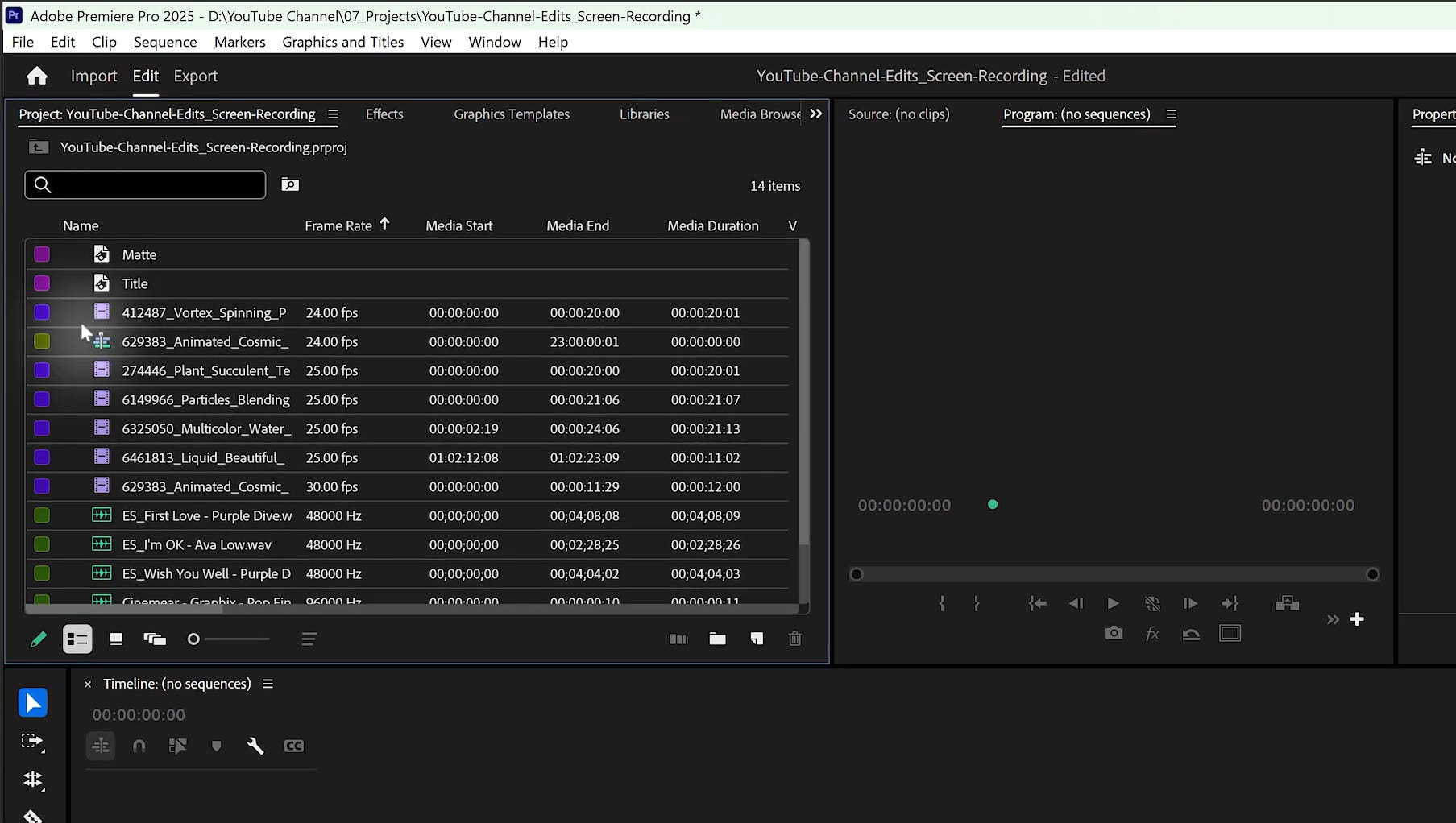
Hover your cursor over the Project Panel
Press the Tilde (`~) key (top-left of your keyboard)
That’ll maximize the panel so you can focus on what matters: getting organized.
Pro Tip:
Tilde (`~) works for any panel—just hover and press to full-screen it. Perfect for small screens.
Create Your First Bins
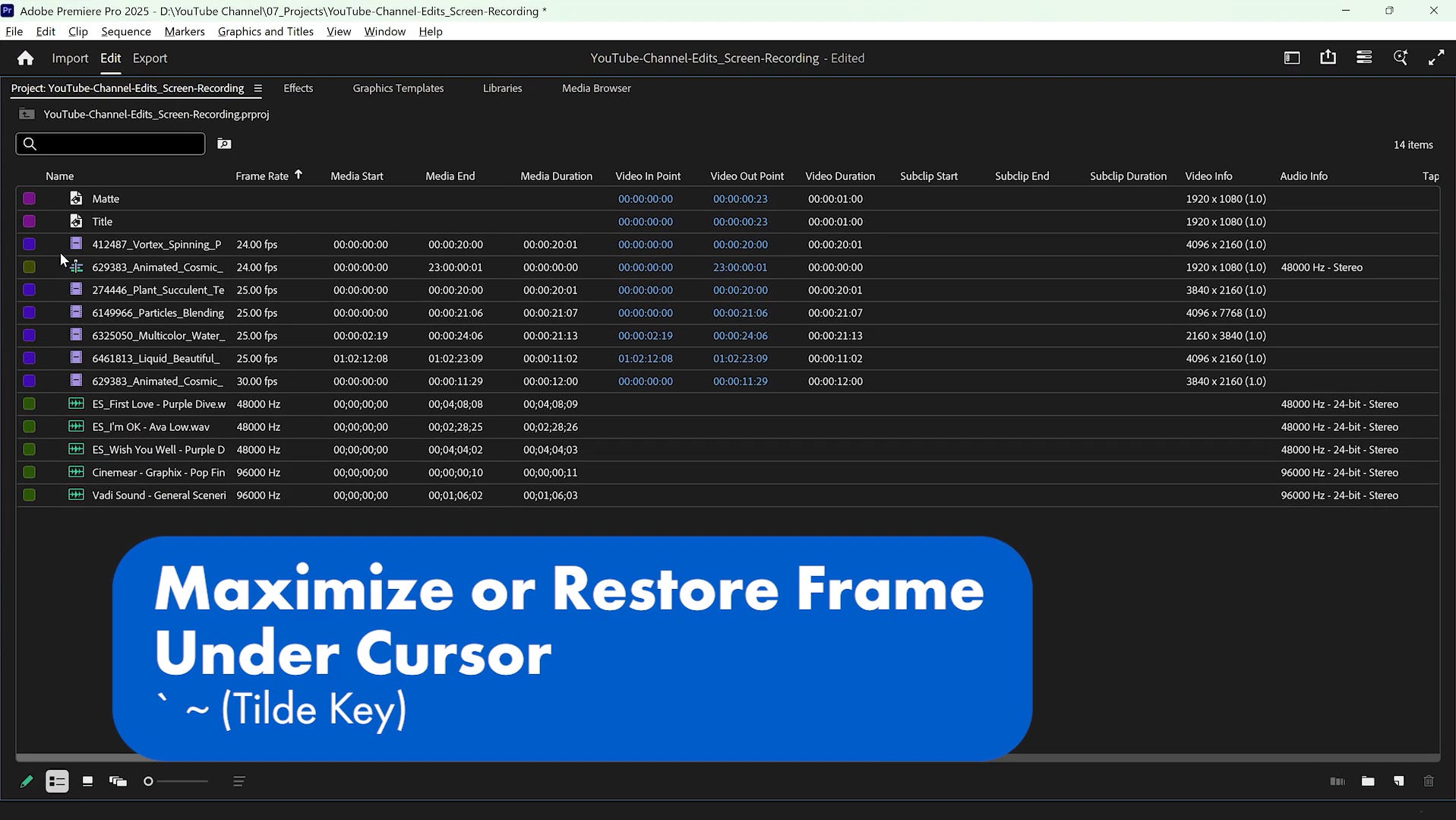
To clean things up, start sorting your files into bins (Premiere’s version of folders).
Two quick ways to make a new bin:
Click the New Bin icon
Press Cmd (Mac) / Ctrl (Win) + B
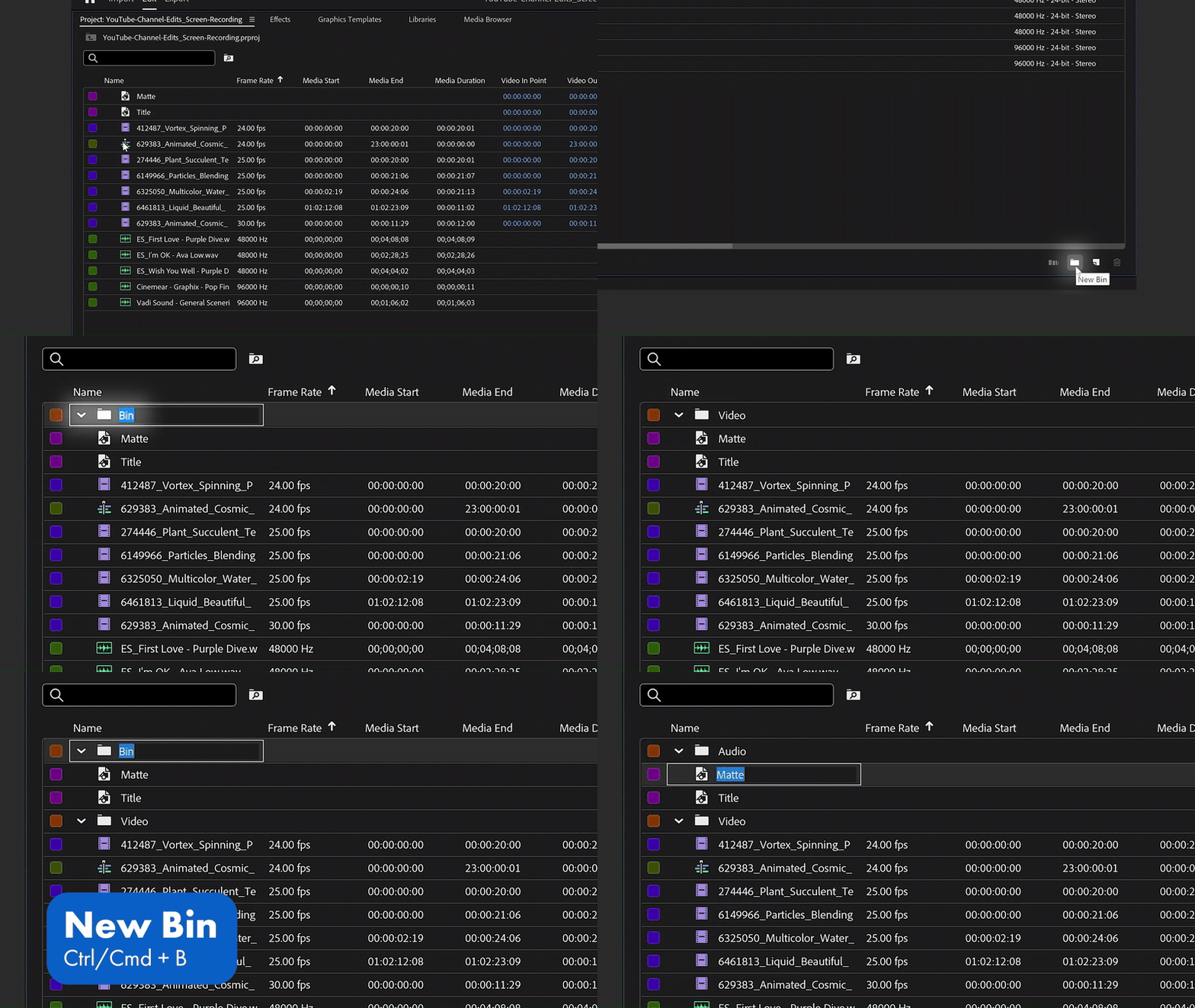
Name them based on your file types:
videomusicSFXgraphicssequences
Selecting & Dragging Clips Quickly
Once your bins are set up, it's time to move your assets efficiently.
Selection Shortcuts:
Select multiple clips (in a row)
Click first→Shift + Click lastSelect random clips
Cmd (Mac) / Ctrl (Win)+Click individual clipsSelect with lasso
Click and dragto draw a selection box
Now Drag & Drop
Move your selected clips into the right bin. Easy and fast.
Pro-Level Folder Hierarchy
Want your folders to stay in your preferred order?
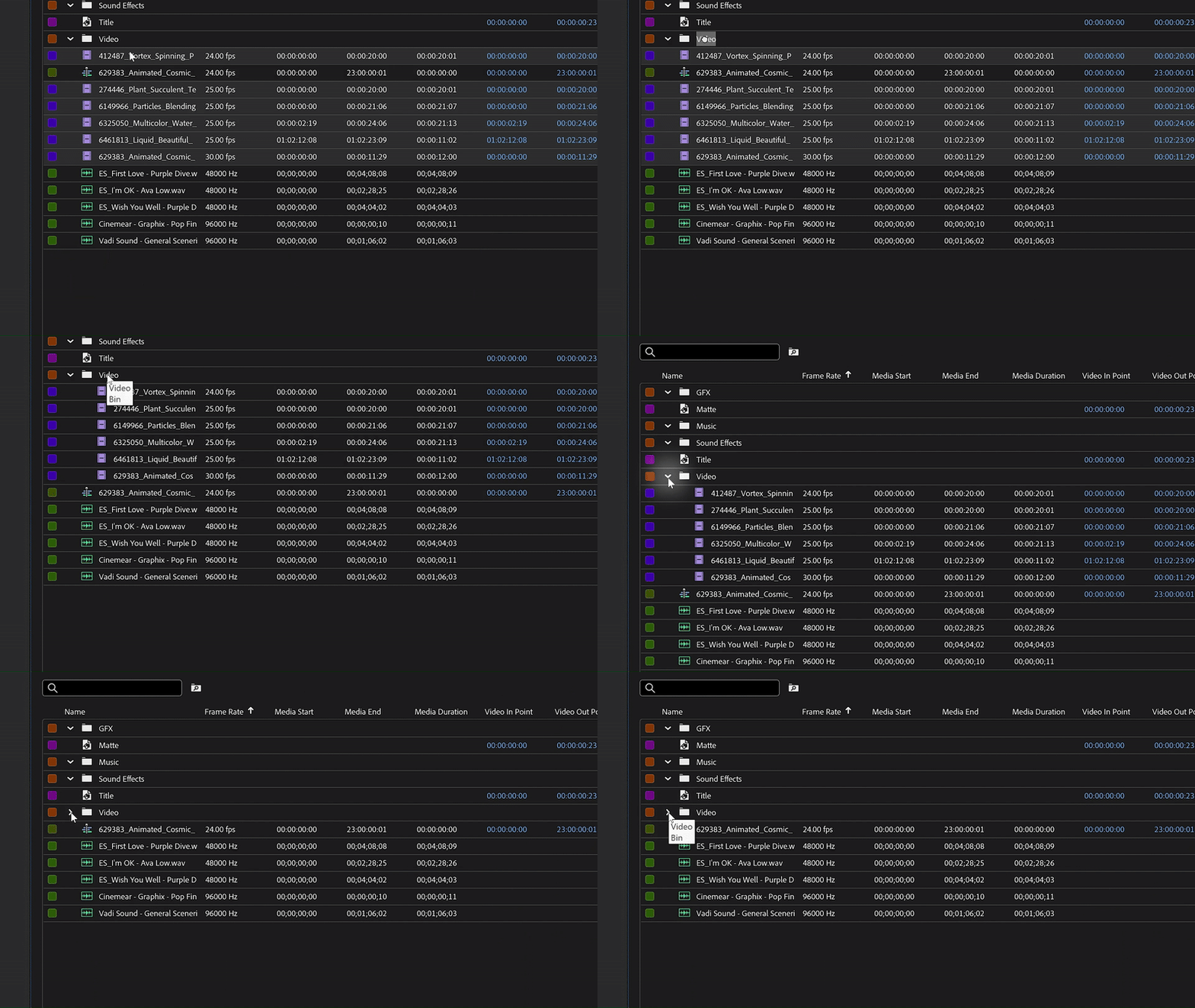
Premiere organizes bins alphabetically—but you can override that.
Just number your folders like this:
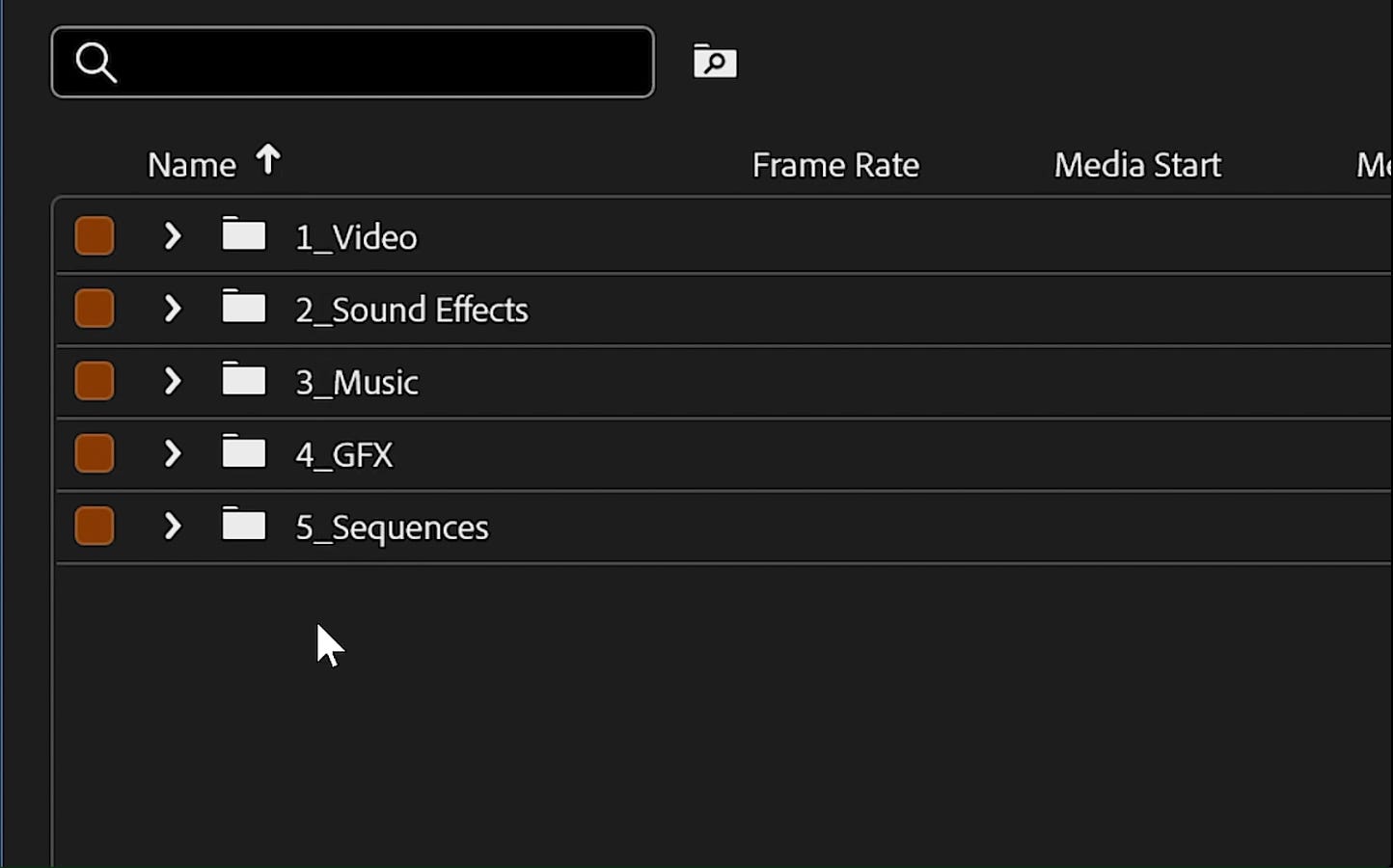
Now, sorting by name will always display them in this custom order.
Pro Tip: Use underscores (_) to keep your folder names aligned and scannable.
Example: 3_MUSIC is easier to read than 3Music.
Everything in Its Place
Once your folders are labeled, your files are sorted, and the chaos is gone:
You’ll find clips faster
You’ll reduce mistakes
You’ll edit with less friction
Final Thoughts
That’s your quick tour through one of Premiere Pro’s most essential workspaces. It might seem basic, but when used intentionally, a clean Project Panel can seriously speed up your workflow and reduce mistakes.
Want to see this in action?
I break it all down with real examples in my YouTube video—check it out when you’ve got a minute!
Got your own folder naming tricks?
Do you use emoji, color codes, or unique labels for client work?
👇 Drop your tips in the comments—I’d love to hear how you stay organized.